Settings
How do I set up invoice numbering?
Continue the numbering from your previous software, add separate numberings with their own prefix and choose which one to use when issuing.
Every invoice in eFirma gets a number from the company's numbering. A numbering consists of a prefix and a next number. If you have issued invoices in other software until now, set the next number to continue the sequence without a gap. If you need separate sequences, for example for different locations, add more numberings with a different prefix.
Where to find numbering
- Open Settings from the menu.
- Choose Numbering.
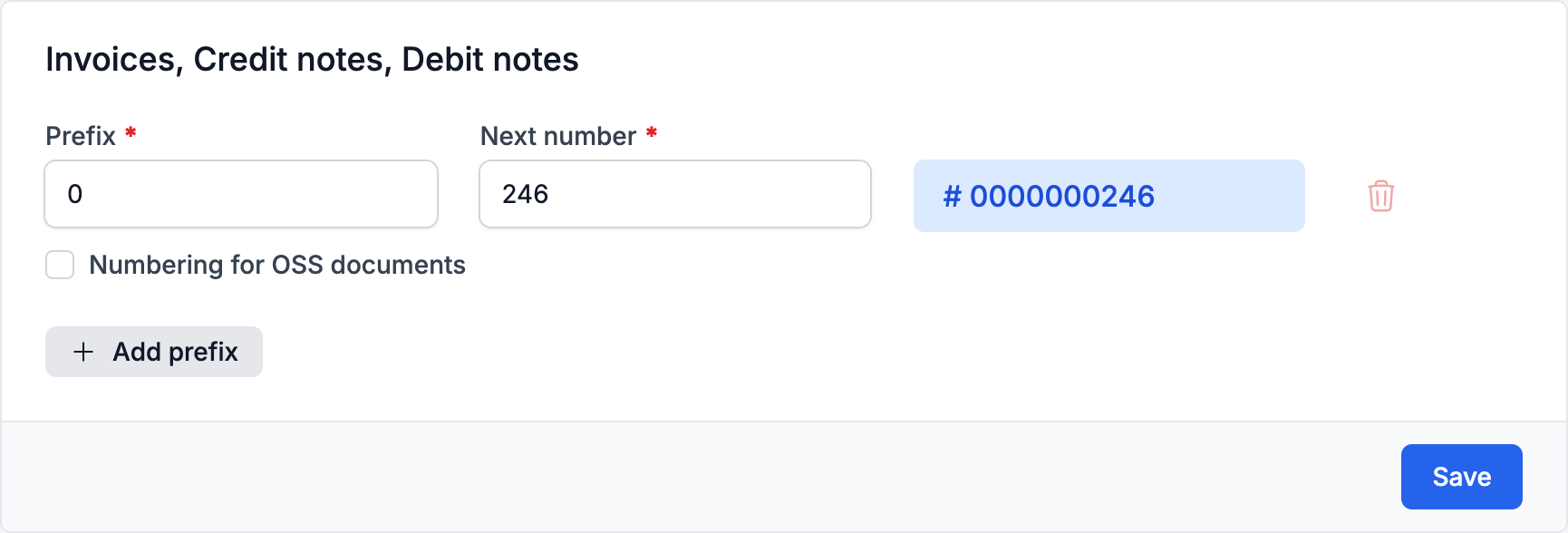
The numberings in the first card, Invoices, Credit notes, Debit notes, are shared by the three document types: credit and debit notes continue the same sequence as invoices. Proforma invoices have a separate numbering in the Proforma invoices card. A new company starts with prefix "0" and next number 1, so the first invoice is number 0000000001.
How the number is formed
The number always has 10 digits: the prefix, then zeros, and finally the sequential number. For example, prefix "1" and next number 25 give number 1000000025. The prefix can contain only digits and must be 1 to 9 digits long, and the prefix and number together cannot be longer than 10 digits. Next to the fields you see what the next number will look like.
How to continue the numbering from other software
- Open Settings and choose Numbering.
- In the Invoices, Credit notes, Debit notes card, enter a Prefix if you want it to differ from the current one.
- In Next number, enter the number the next invoice should get. If your last invoice is number 0000000245, enter 246.
- Check the number shown next to the fields and click Save.
Fill in the prefix first and the next number after it: when you change the prefix, eFirma fills in the next number for it. If a document with the same number already exists, the change is not saved and you see Document with this number already exists.
How to add more numberings
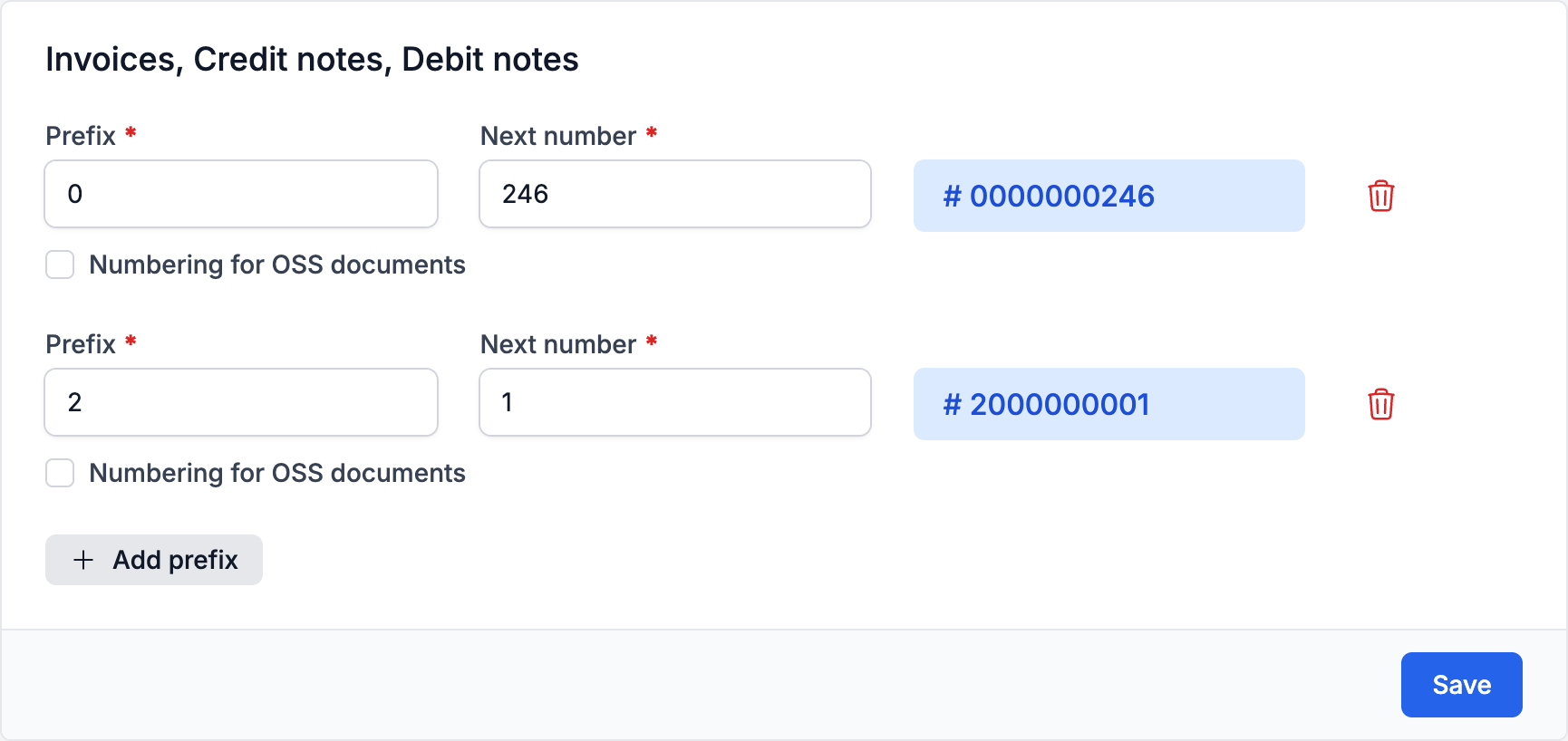
- In the Invoices, Credit notes, Debit notes card, click Add prefix.
- Enter a Prefix, for example "2", and a Next number.
- Click Save.
If two numberings would give the same next number, you see Duplicate document numbers. To remove a numbering, click the trash can button next to it and then Save. Documents issued with it keep their numbers, and if you add the same prefix again later, the numbering continues from where it left off. At least one numbering must always remain.
How to choose a numbering when issuing
When the company has more than one numbering, a Change prefix button appears below the number of a new document.
- Open a new invoice, credit note or debit note (see How do I issue an invoice?).
- Click Change prefix below the document number.
- Choose the numbering. Each row in the list shows its next number.
By default, the first numbering in the settings list is selected. The number becomes final only when you save: if a colleague has issued a document with the same numbering in the meantime, yours gets the next number. Once the document is saved, you cannot change its numbering.
If the company is registered for the OSS scheme, each invoice numbering has a Numbering for OSS documents checkbox. When some numberings are ticked, the editor offers only those for a customer under the OSS scheme, and the unticked ones for all other customers.
Other numberings
The same page has the numberings for Cash receipt vouchers, Cash disbursement vouchers and Journal vouchers, which you set up the same way. They also have a Start a new numbering for each calendar year checkbox. Invoices have no such checkbox, and their numbering continues into the new year. The Cash disbursement vouchers card shows on the Business and Firm plans, which include expenses.
Every change to the numbering is recorded in History at the top right of the settings page.
More in Settings
Did not find an answer? Write to us through Feedback in the app or through the contact form.
Ready to get started?
Registration is free, and your first invoice takes only a minute to issue.
Start for freeNo credit card required. You can cancel at any time.