Settings
How do I add users and roles?
Invite your colleagues to your company, give each of them a role and create roles with exactly the permissions you choose.
In Settings > Users and roles, you invite the people you work with to your company. Everyone signs in with their own account, and their role determines what they can see and what they can change.
Inviting users works on every plan. Creating roles and changing their permissions are included in Business and Firm. On the Free plan, and for a client covered by an accounting firm's subscription, you can invite people but cannot create or change roles.
Users with the View users / roles permission can see this tab. To invite people, change their roles and create roles, you also need the Edit users / roles permission. The Manager role has both.
How to invite a user
- Open Settings from the menu and choose the Users and roles tab.
- In the Users card, click Invite user.
- Enter the Email address, then choose a Role and the Invitation language.
- Click Send invite.
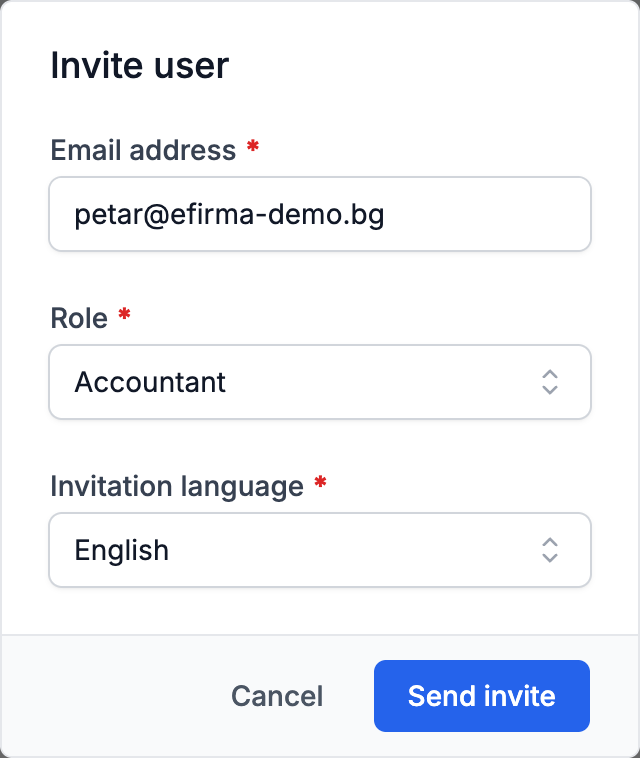
The invited person gets an email in the chosen language with an Accept the invitation button. If they do not have an eFirma account yet, they sign up on the page that opens. If they do, they sign in and click Join company. The invitation also appears in their list of companies, in the Invitations table. The link in the invitation is valid for 7 days.
Until the invitation is accepted, it stays under Invited users. In the three-dot menu on its row, Resend invite sends a new link and lets you change the role and the language, and Cancel invite cancels the invitation.
You cannot invite someone who is already a user of the company or has already been invited. Only a manager can send an invitation with the Manager role.
How to change a role or remove a user
The table in Users shows the Role, Status and Last active of each person.
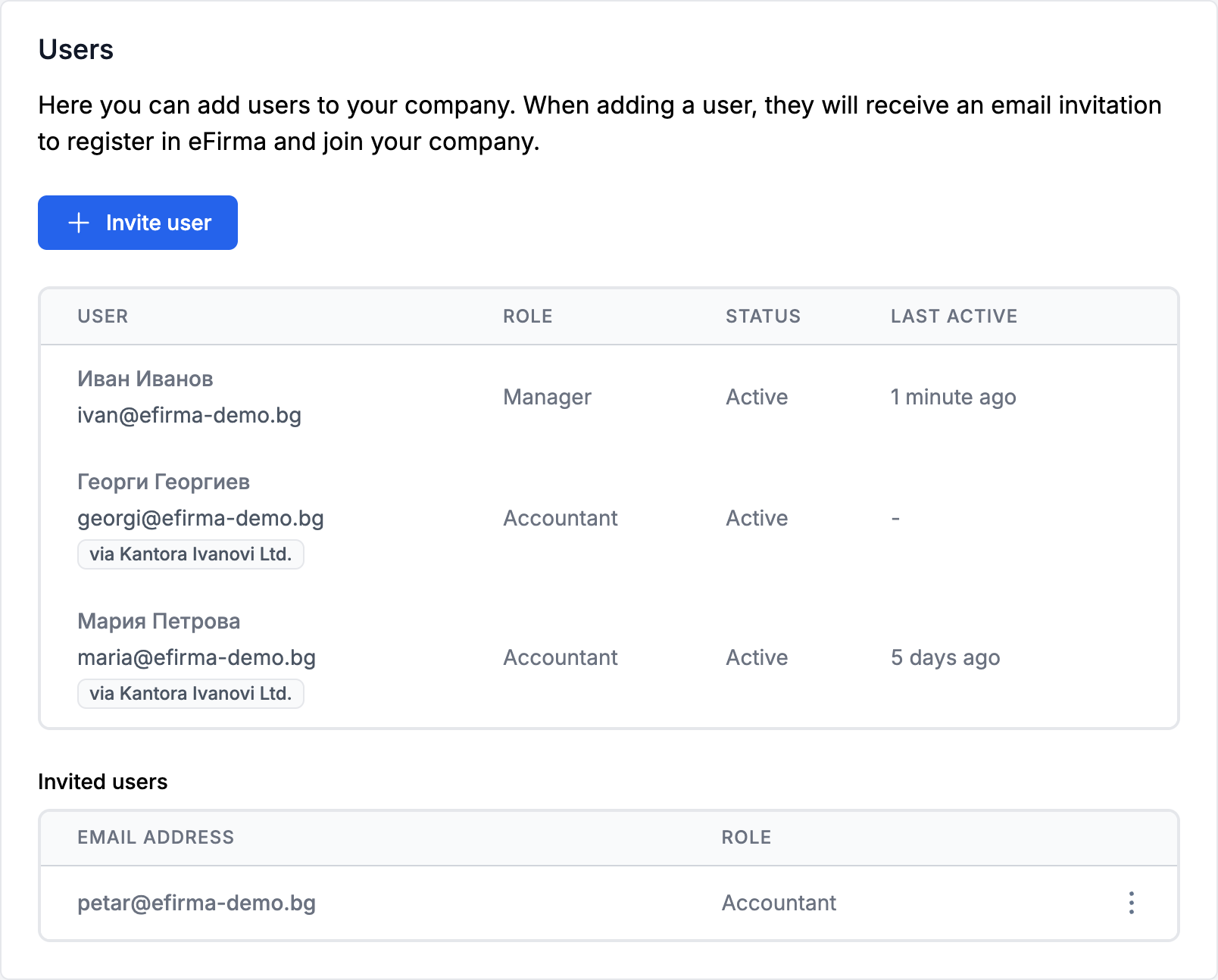
- Change the role: in the three-dot menu on the row, choose Change role, select the new Role and click Save.
- Remove a user: in the same menu, choose Remove user and confirm with Remove user.
Your own row has no menu. Only a manager can give or take away the Manager role and remove a manager, and the company must always have at least one manager.
People from an accounting firm have "via" and the firm's name next to their name. Their role is changed for the whole firm: in the Accounting firms card, choose Change role from the three-dot menu on the firm's row, select the new Role and click Save. To learn more about accounting firms, see How do I create an accounting firm?
Default roles
Every new company starts with two roles:
- Manager: full access to everything, including users and the subscription. This role cannot be changed or deleted.
- Accountant: works with revenues, expenses, contacts, items, files and payments, sees the company details and bank accounts, and can change the invoice numbering and categories. No access to users or the subscription.
How to create a role
Creating roles is included in the Business and Firm plans.
- In Settings > Users and roles, find the Roles card and click Create role.
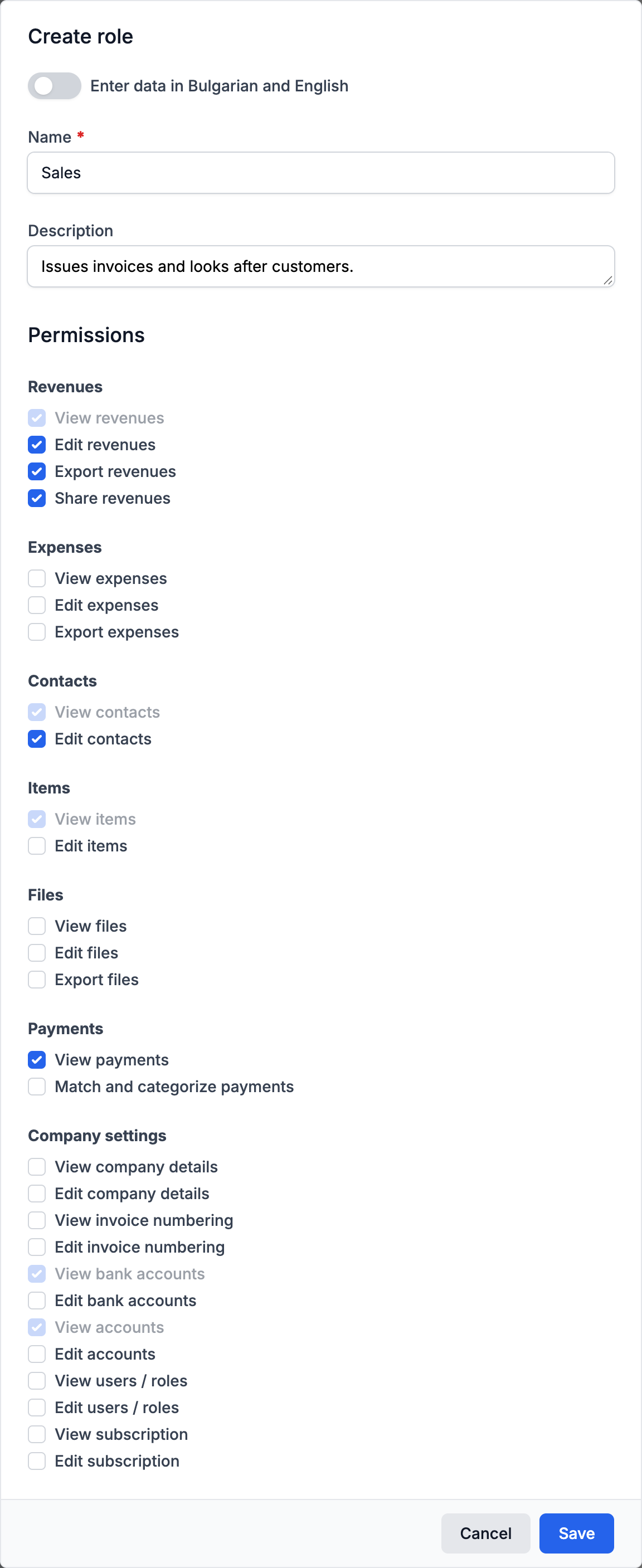
- Enter a Name and, if you like, a Description. With the Enter data in Bulgarian and English toggle, you also enter an English name and description.
- Under Permissions, check what the role can do. The permissions are grouped under Revenues, Expenses, Contacts, Items, Files, Payments and Company settings. The last group holds the permissions for company details, invoice numbering, bank accounts, categories, users and the subscription.
- Click Save.
Some permissions require others. For example, Edit revenues also checks View revenues, View contacts, View items, View accounts and View bank accounts. These boxes are checked automatically and cannot be cleared while the permission that requires them is selected.
Two roles cannot have the same name. The new role appears right away in the Role field when you invite someone or change a role.
How to change the permissions of a role
- In the Roles card, open the three-dot menu next to the role and choose Edit role.
- Change the permissions and click Save.
The changes apply right away to all users with that role. You can change the permissions of the Accountant role and of the roles you have created. The Manager role has no menu, and its permissions cannot be changed.
To delete a role, choose Delete role from the same menu and confirm. A role that has a user, a pending invitation or an accounting firm cannot be deleted: first change their role or cancel the invitation.
On the Free plan, roles are shown in the Roles card but cannot be created, changed or deleted.
More in Settings
Did not find an answer? Write to us through Feedback in the app or through the contact form.
Ready to get started?
Registration is free, and your first invoice takes only a minute to issue.
Start for freeNo credit card required. You can cancel at any time.