Revenues
How do I set up a recurring invoice?
Set the customer, the lines and the schedule once, and eFirma issues the invoice on every date in the schedule and can email it to the customer.
A recurring invoice is a template for an invoice you issue regularly, for example for a monthly subscription, rent or maintenance. You set the customer, the lines and the schedule once, and on every date in the schedule eFirma issues a new invoice and, if you want, emails it to the customer.
Recurring invoices are included in the Business and Firm plans, and in the trial. They are not included in the Free plan. A client covered by an accounting firm's subscription does not have recurring invoices either.
How to create a recurring invoice
- Open Recurring invoices under Revenues in the menu and click New recurring invoice.
- In the Schedule card, set when the invoice is issued, as described in the next section.
- Below it, choose the Customer and add the lines, as on a regular invoice. If you have several numberings, choose one with Change prefix.
- Click Save.
If Start date is today, the Invoice generation dialog opens when you save. Click Continue to create the recurring invoice and issue the first invoice right away.
Creating and changing recurring invoices requires the Edit revenues permission.
How to set the schedule
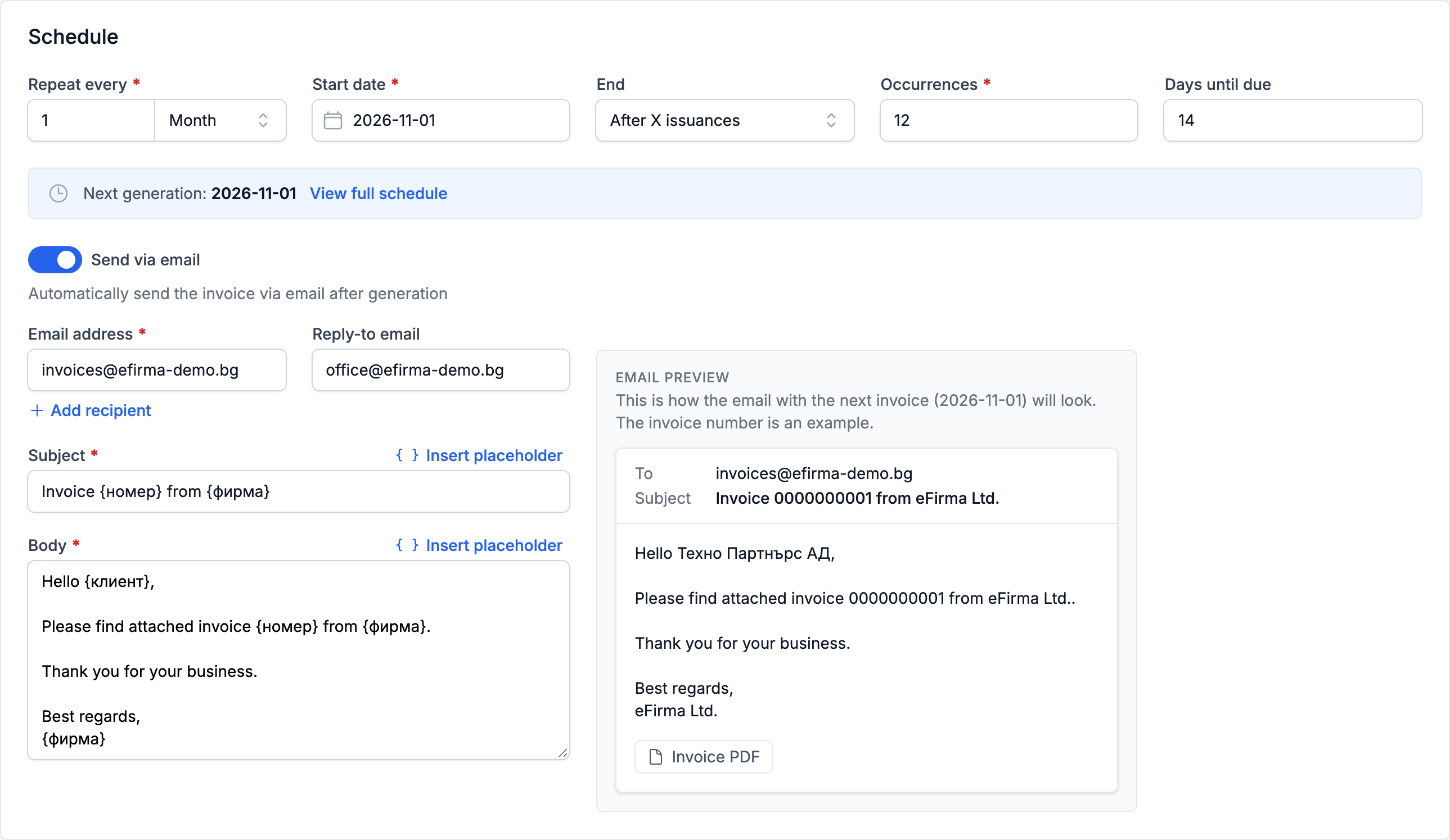
- Repeat every: enter a number and choose Day, Week, Month or Year. For example, 3 and Months means an invoice every quarter.
- Start date: the date of the first invoice. It cannot be in the past. It also sets the day of the month: if a monthly schedule starts on the 31st, in shorter months the invoice is issued on their last day.
- End: No end, Until a specific date (enter an End date) or After X issuances (enter how many invoices in the Occurrences field).
- Days until due: how many days after the issue date the payment is due. The default is 14. If you leave the field empty, the invoices have no due date.
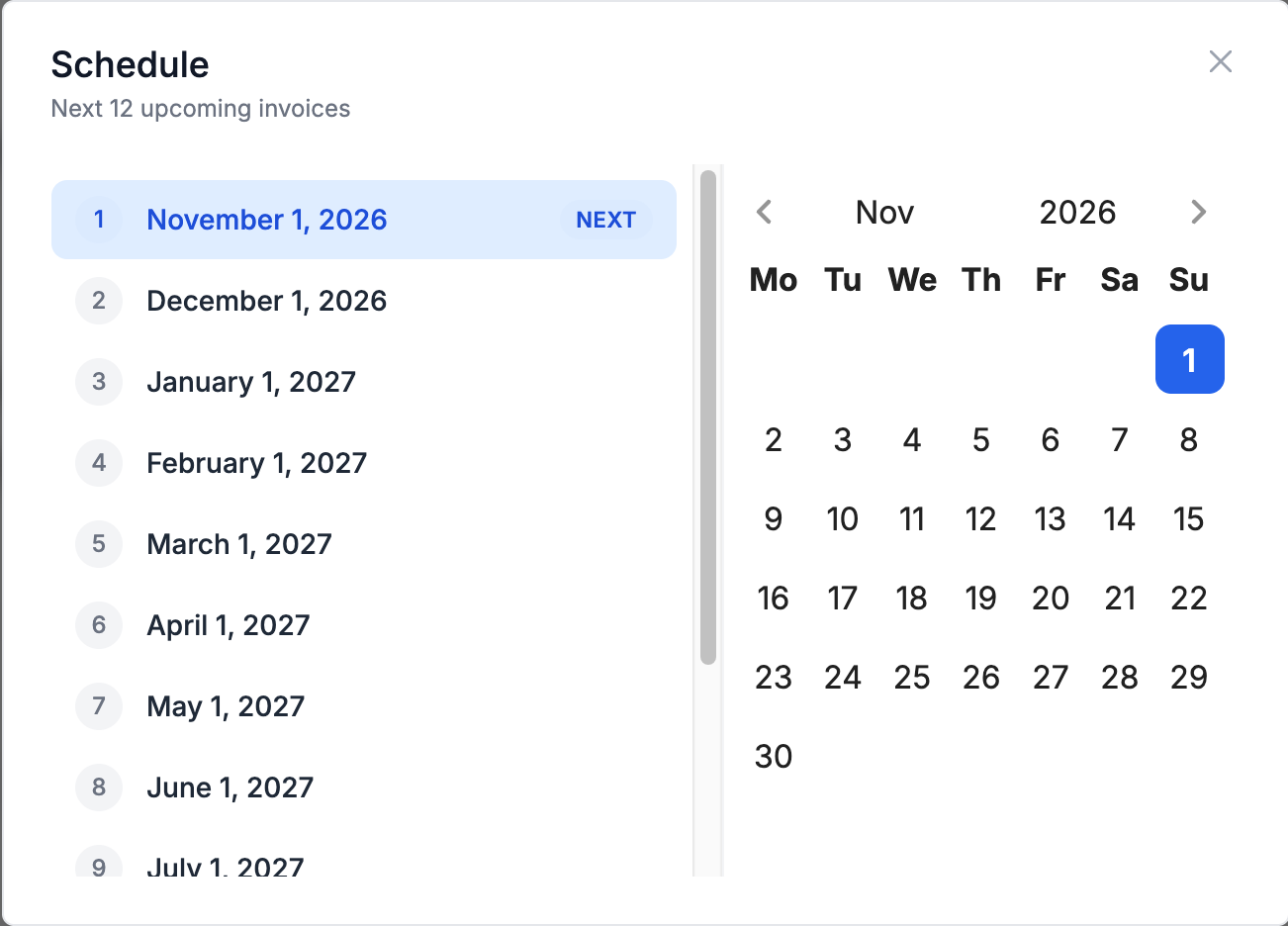
Below the fields you see the Next generation date. View full schedule opens a calendar with up to the next 15 issue dates.
Text that changes with the date
In the name of each line and in the notes, you can insert a placeholder that is filled in from the date of each invoice. Click the { } button at the end of the line, or Insert placeholder above Notes, and choose a placeholder. Below the field you see how the text will look on the next invoice.
- {дата}: the issue date, for example 01.11.2026.
- {месец}: the month and year, for example 11.2026.
- {месец_с_думи}: the month in words, for example November 2026.
- {година}: the year.
{месец-1}, {месец+1}, {месец_с_думи-1} and {година-1} give the previous or next month and the previous year. For example, the line “Subscription for {месец_с_думи}” on the invoice of November 1, 2026 becomes “Subscription for November 2026”.
How to email the invoices
- In the Schedule card, turn on Send via email.
- Email address holds the customer's email. Use Add recipient to add more addresses, up to 5 in total.
- In Reply-to email, enter the address where the customer's replies should arrive.
- Check Subject and Body. With Insert placeholder you add {номер}, {клиент} and {фирма}, which are filled in when the email is sent, as well as the date placeholders.
Email preview shows how the email with the next invoice will look. The invoice is attached to it as a PDF file.
Emailing is included in the Business and Firm plans, but not in the trial without a card added. In that case, under Send via email it says “Sending invoices by email requires a paid subscription. Until then, they are issued but not sent.” The invoices are still issued on schedule, but they are not emailed.
What happens on each date in the schedule
On each date in the schedule, eFirma issues a new invoice from the template:
- The number is the next free one in the selected numbering.
- The issue date and the date of taxable event are the schedule date, and the due date is as many days later as you set.
- Placeholders such as {месец} are filled in from that date.
- For an invoice in a currency other than the company's base currency, the exchange rate is the one for the issue date, as on a regular invoice.
The new invoice has the status Issued, or Sent when it is emailed. You see it in Revenues and in the Generated invoices card on the recurring invoice's page. When the end date passes or the last invoice is issued, the recurring invoice becomes Completed and no new invoices are issued.
Pausing, editing and deleting
In Recurring invoices, the list shows Billed to, Repeat every, Next generation, Total and Status: Active, Paused or Completed. You can filter it by Contact, Status and Period.
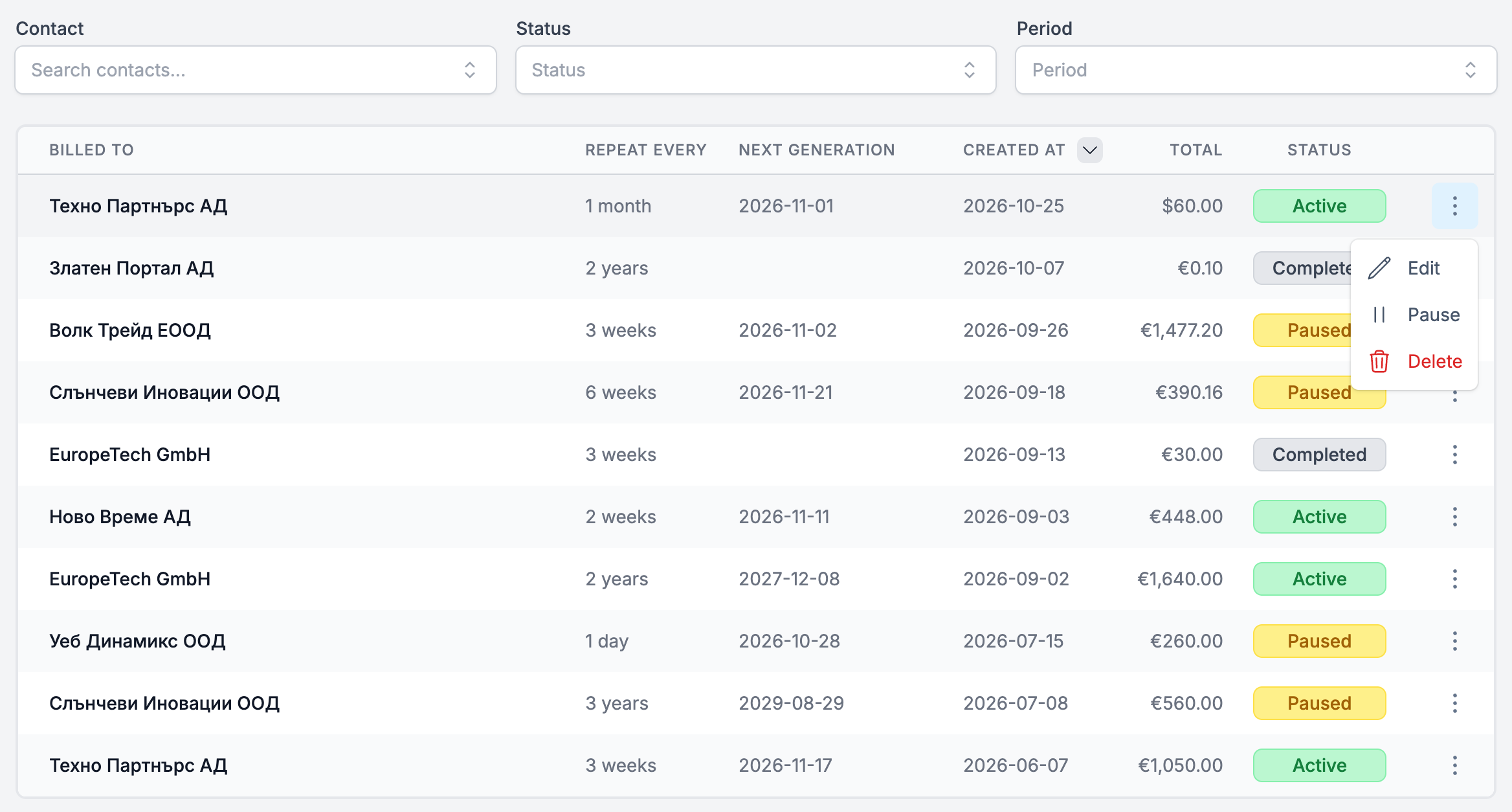
The actions are in the three-dot menu on the row. On the recurring invoice's page, they are at the top, above it:
- Pause: while a recurring invoice is paused, no invoices are issued.
- Resume: dates missed during the pause are not backdated, and the next invoice falls on the first schedule date after today. If the end date has passed in the meantime or all invoices have already been issued, the recurring invoice becomes Completed.
- Edit: after the first invoice is issued, the customer and Start date cannot be changed, and changes apply only to the following invoices. If the new settings mean the end has already passed, eFirma warns you when you save that the recurring invoice will be completed. A completed recurring invoice cannot be edited.
- Delete: confirm with Delete. Invoices already issued stay in Revenues.
When the subscription ends
If the subscription ends and the company moves to the Free plan, or to the subscription of an accounting firm that covers it, active recurring invoices are paused and no new invoices are issued. The same happens when the trial ends without a subscription. Invoices already issued stay. You can resume the recurring invoices after you activate Business or Firm again, as described in the article on plans and subscriptions.
More in Revenues
Did not find an answer? Write to us through Feedback in the app or through the contact form.
Ready to get started?
Registration is free, and your first invoice takes only a minute to issue.
Start for freeNo credit card required. You can cancel at any time.