Subscription
How do I choose and change my plan?
See how the trial works and how to activate or change your plan, buy extra scans and bank accounts, and cancel your subscription.
Your company's subscription is managed from one page in the settings. From there, you activate or change your plan, buy additional AI scans and bank accounts, cancel the subscription and download the invoices you receive from eFirma. The full plan comparison is in the pricing section.
Where to find the subscription page
- Open Settings from the menu.
- Choose the Subscription tab.
Users with the View subscription permission can see this tab. To activate, change or cancel the plan and to buy add-ons, you also need the Edit subscription permission. The Manager role has both.
Trial period
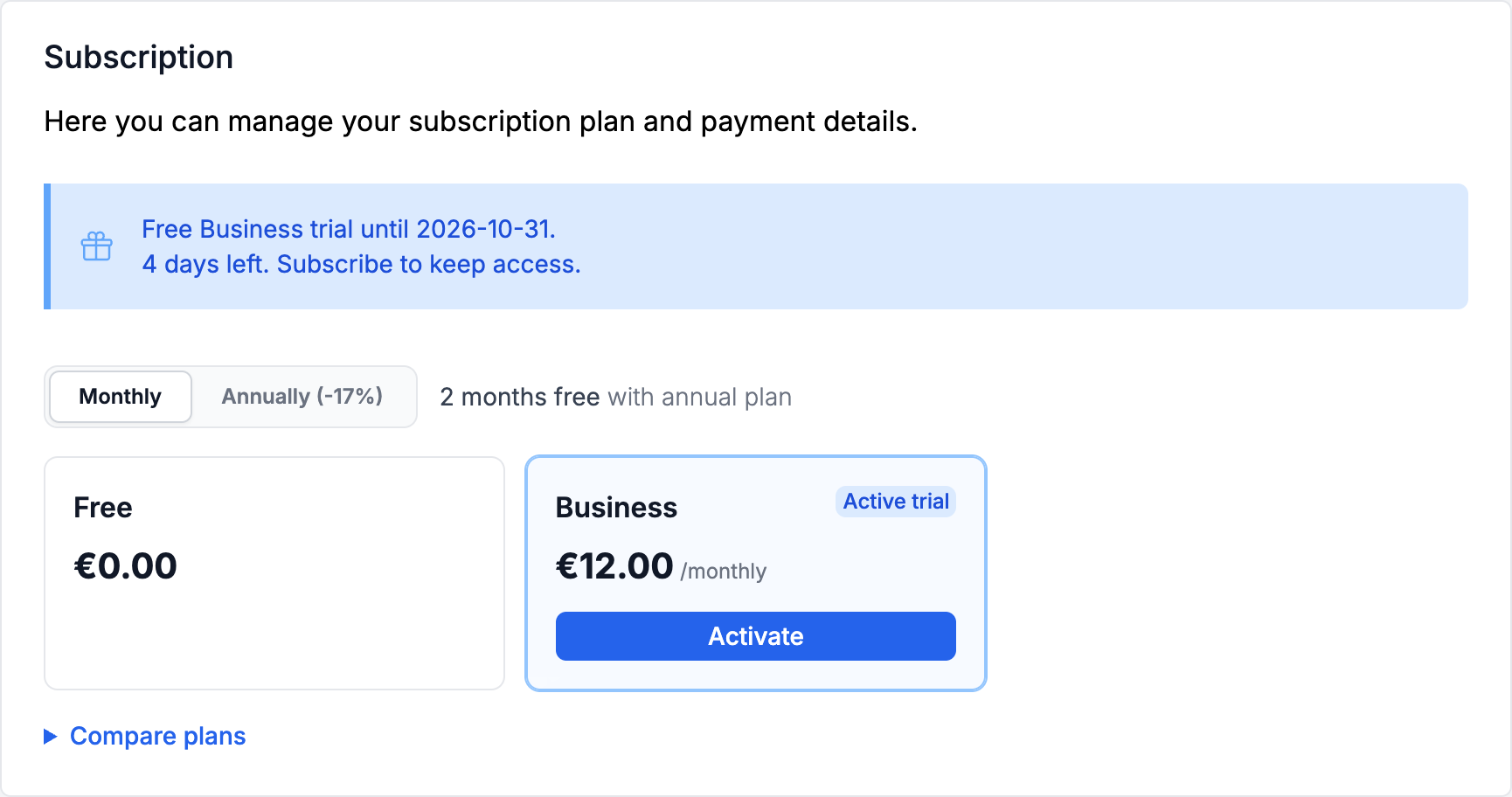
Every new company starts with a free 14-day trial of Business, and a company created as an accounting firm starts with a trial of Firm. No card is needed. While the trial runs, the menu shows how many days are left, and View plans takes you to the plan comparison.
You do not need to cancel the trial. If you do not activate a plan, it ends on its own and the company moves to the Free plan or, if it is a client of a firm on the Firm plan, to the firm's subscription. During the trial, you cannot buy additional AI scans or bank accounts.
Subscribe to a plan
- Choose Monthly or Annually. The annual plan gives you 2 months free.
- Click Activate under the plan you want.
- Enter your payment details in the window that opens. If you have a promo code, enter it there.
Business costs €12 a month or €120 a year, and Firm costs €39 a month or €390 a year. Firm is offered only to the company of an accounting firm. If you activate a plan during the trial, the trial ends and billing starts right away.
Change your plan
- Choose Monthly or Annually.
- Click Switch to this plan under the new plan. Use the same button under your current plan to change only the billing period.
- If you have a promo code, enter it in the Promo code field.
- Click Change plan.
Outside the trial, the difference for the remaining time is invoiced right away. When you switch between monthly and annual billing, the new period starts on the day of the switch and the unused time is deducted. If the payment fails, your plan stays the same. You cannot switch during a trial without a card (use Activate instead), after a failed payment, or when the subscription is scheduled to end. When an accounting firm moves from Firm to Business, its clients without a plan of their own move to Free.
Additional AI scans
- Find the Additional AI scans card.
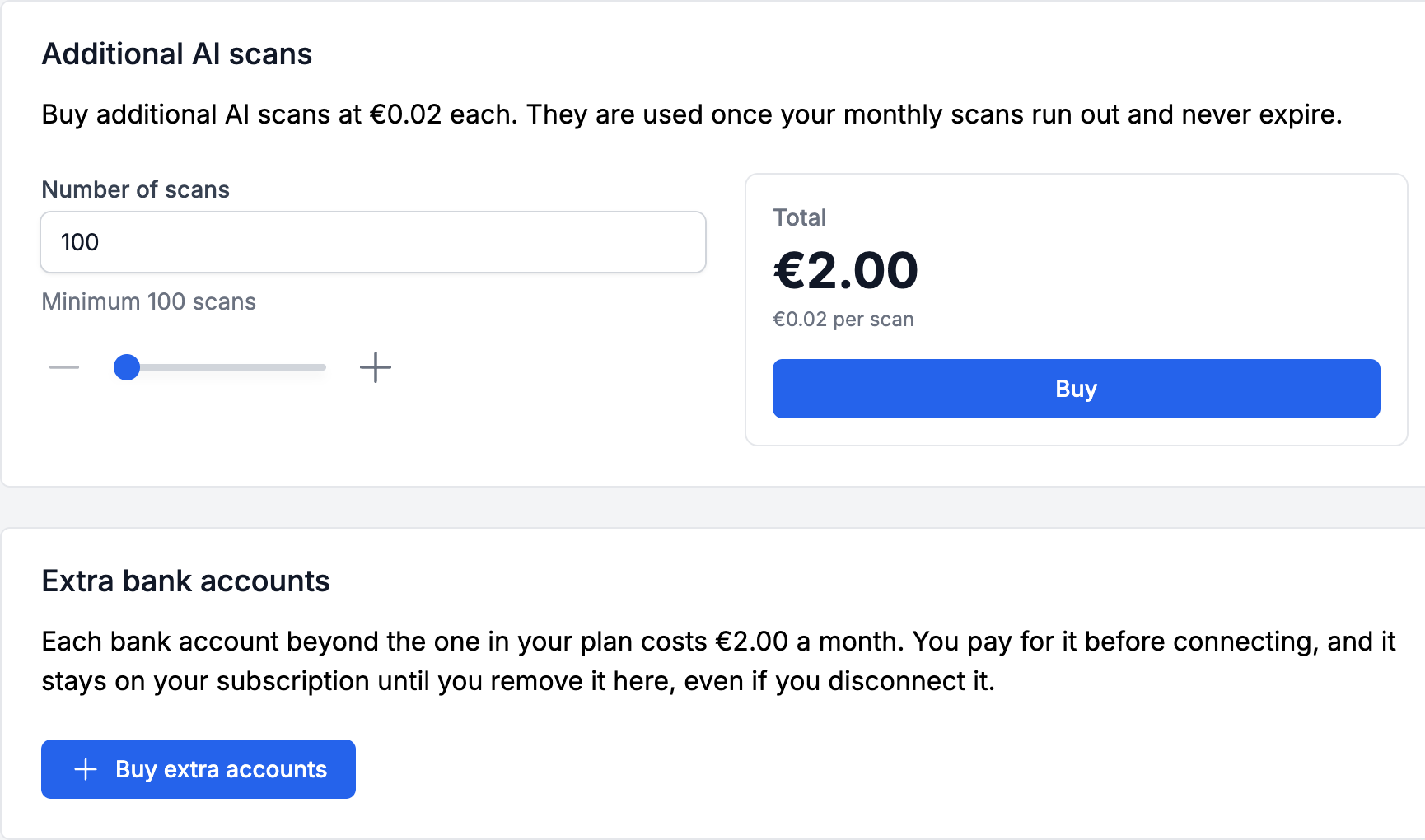
- Enter the Number of scans, from 100 to 10,000, or move the slider.
- Click Buy and complete the payment in the window that opens.
Each scan costs €0.02. Purchased scans are used once your monthly scans run out, and they never expire. You can buy them on the Business and Firm plans.
Extra bank accounts
Business and Firm include one connected bank account. For more accounts:
- In the Extra bank accounts card, click Buy extra accounts.
- Enter the number in Accounts to add and click Buy.
Each account costs €2 a month or €24 a year, depending on your plan's billing period. Right away, you pay only for the time left until renewal. The accounts stay on your subscription until you lower their number with Change. You see the buy button if you have the Edit bank accounts permission in addition to Edit subscription. To learn how to connect an account, see How do I connect my bank account?
Cancel your subscription
- Click Manage subscription at the top of the page.
- On the payment page that opens, cancel the subscription. You can also change your card there.
After you cancel, the page shows the date on which the plan will be canceled. After that date, the company moves to the Free plan or, if it is a client of a firm on the Firm plan, to the firm's subscription. Nothing is deleted. Active recurring invoices stop, and connected bank accounts are disconnected, while the transactions already downloaded stay. The same happens when the trial ends without a subscription.
Invoices and recipients
The Invoices card holds the invoices from eFirma for your subscription and purchased AI scans. Click a row to view the invoice, or choose Download PDF from its menu.
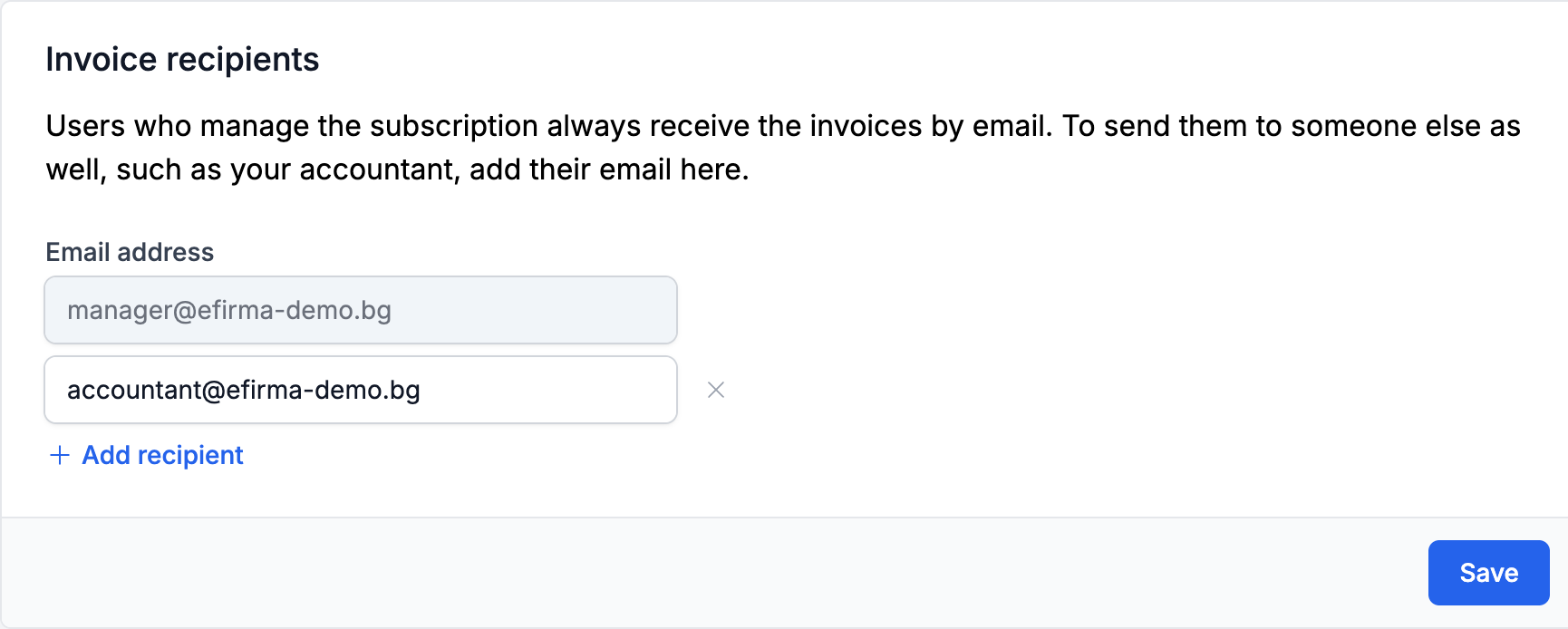
Users who manage the subscription receive the invoices by email. To have someone else receive them too, such as your accountant:
- In the Invoice recipients card, click Add recipient.
- Enter the email address and click Save.
You can add up to 5 additional addresses.
Did not find an answer? Write to us through Feedback in the app or through the contact form.
Ready to get started?
Registration is free, and your first invoice takes only a minute to issue.
Start for freeNo credit card required. You can cancel at any time.