Accounting firms
How do I create an accounting firm?
Create your accounting firm in eFirma, invite your team, add your clients, assign responsible accountants and see what the Firm plan adds.
An accounting firm brings together your team and the client companies you serve. It works through your own company, and the subscription and the invoices from eFirma are in that company's name. Everyone on your team signs in with their own account and sees their clients in one list.
Create a firm with a new company
- Open the list of companies at the top of the menu and choose Manage companies.
- Click Create new company.
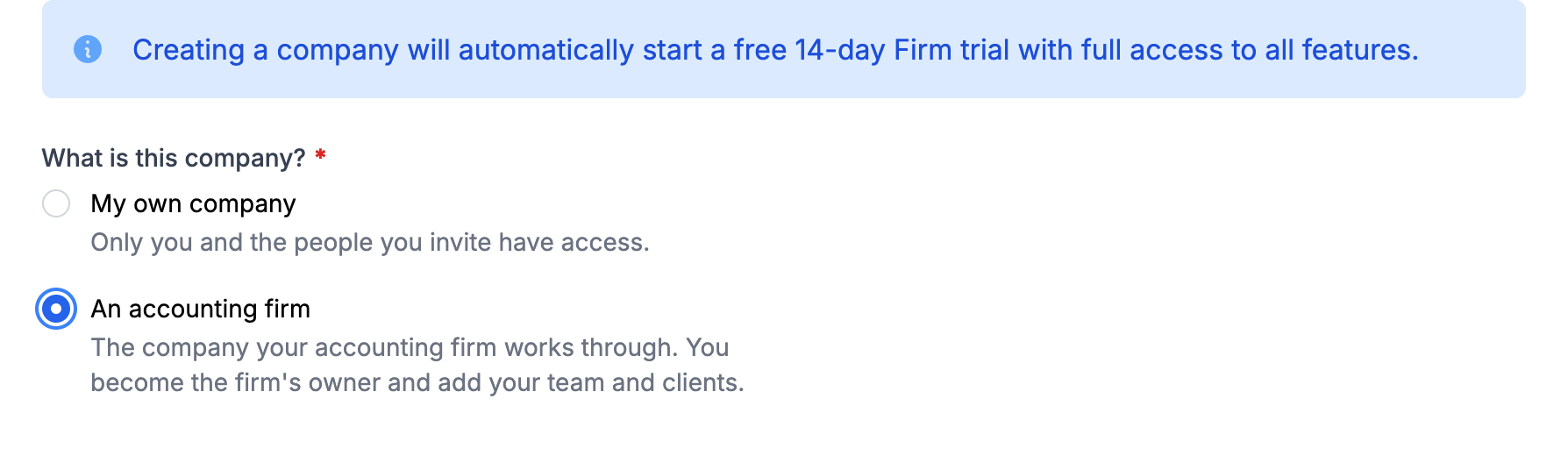
- Under What is this company?, choose An accounting firm.
- Fill in the company details and click Create company.
You become the owner of the firm, and its company gets a free 14-day trial of Firm, with no card needed.
Create a firm from an existing company
- In Manage companies, click Create accounting firm.
- In Firm's company, choose the company you work through.
- Click Create accounting firm.
The list shows the companies you manage directly, not through a firm, that are not firms yet. The chosen company keeps its plan and does not get a new trial. There can be only one accounting firm with a given UIC in eFirma. After that, you open the firm from My firm in the menu.
Invite your team
- In My firm, open the Team tab and click Invite team member.
- Enter the Email address, then choose a Role and the Invitation language.
- Click Send invite.
An Owner manages the owners and can delete the firm. An Administrator manages the team and the clients. Both see every client. A Team member works only in the clients they are responsible for. Owners and administrators invite new people, and only an owner can invite a new owner.
Add clients
A company that is already on eFirma:
- In the Clients tab, click Request access.
- Enter the client's UIC and confirm with Request access.
The client's managers get an email. They approve the request in Settings > Users and roles > Accounting firms with Approve and choose the role the firm works with. With the Manager role, the firm has full rights, including over users and the subscription. The person who requested access becomes responsible for the client.
An invitation from the client: the client can also invite the firm. In the Accounting firms card, they click Invite a firm, enter the firm's UIC and choose a role. The firm's owners and administrators accept it in Clients > Invitations from companies with Accept invitation.
A new company for the client:
- In Clients, click Create client company.
- Fill in the details and click Create company.
You become the manager of the new company, and the firm's owners and administrators get access with the Accountant role. The company gets its own 14-day trial of Business. While it has its own trial or subscription, the firm's subscription does not cover it.
Responsible accountants
- In Clients, open the menu on the client's row and choose Assign responsible.
- Check the team members and click Save.
Responsible accountants work in the client's company with the role the client chose. Owners and administrators assign them.
The client list
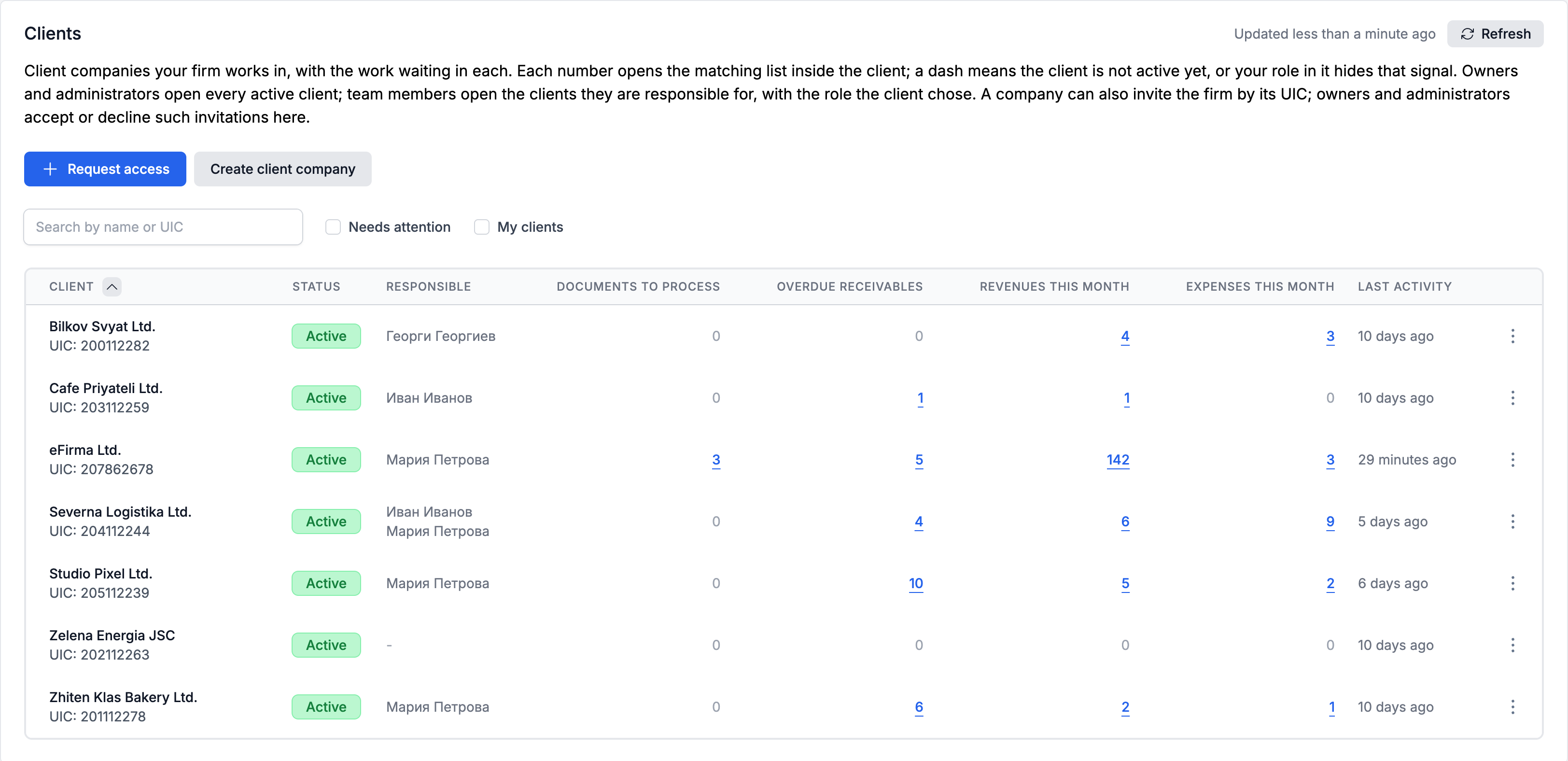
For each client, the list shows the status, the responsible accountants, the documents to process, overdue receivables, revenues and expenses for the month, and the last activity. Each value opens the matching list inside the client's company. You can search by name or UIC, and Needs attention leaves only the clients with documents to process or overdue receivables.
What the Firm plan adds
The firm, the team, the clients, the responsible accountants and the client list work on every plan. The Firm plan is for the firm's company. It costs €39 a month or €390 a year and includes everything in Business, plus:
- 500 AI scans a month, used only by the firm's people, in the firm's company and in its clients;
- 50 GB in eFirma Drive, shared with the covered clients;
- client coverage: every active client without a plan of its own gets expense management and space in the firm's eFirma Drive, and its users upload documents that the firm's people scan;
- a column in the client list for the firm's scans this month and, when there are covered clients, a column with the Drive space they use.
You activate it on the Subscription page of the firm's company, which you reach through My firm > Settings > Open subscription. A client covered by the firm's subscription does not get its own AI scans, a bank account, recurring invoices or sending documents by email. For these, it can choose a Business plan of its own. If the Firm trial ends without a subscription, the firm's company moves to Free and the clients lose their coverage. See also How do I choose and change my plan?
Did not find an answer? Write to us through Feedback in the app or through the contact form.
Ready to get started?
Registration is free, and your first invoice takes only a minute to issue.
Start for freeNo credit card required. You can cancel at any time.