Payments
How do I connect my bank account?
Connect your company's bank account to see your transactions in eFirma and link them to invoices and expenses.
When you connect your company's bank account, eFirma receives its transactions and balance and shows them in Payments. There you link each payment to the invoice or expense it belongs to, and the document's status is updated. You confirm access to the account on your bank's website, and eFirma does not ask for your online banking password.
Business and Firm each include one connected bank account. Each extra account costs €2 a month, or €24 a year on an annual subscription. During the trial you can connect one account. Bank integration is not included in the Free plan.
How to connect the account
- Open Settings from the menu and choose the Bank accounts tab.
- Click Add bank account. Fill in Bank account name, choose the bank from the Bank list, enter the IBAN and currency, and click Save. If the account is already added, skip this step.
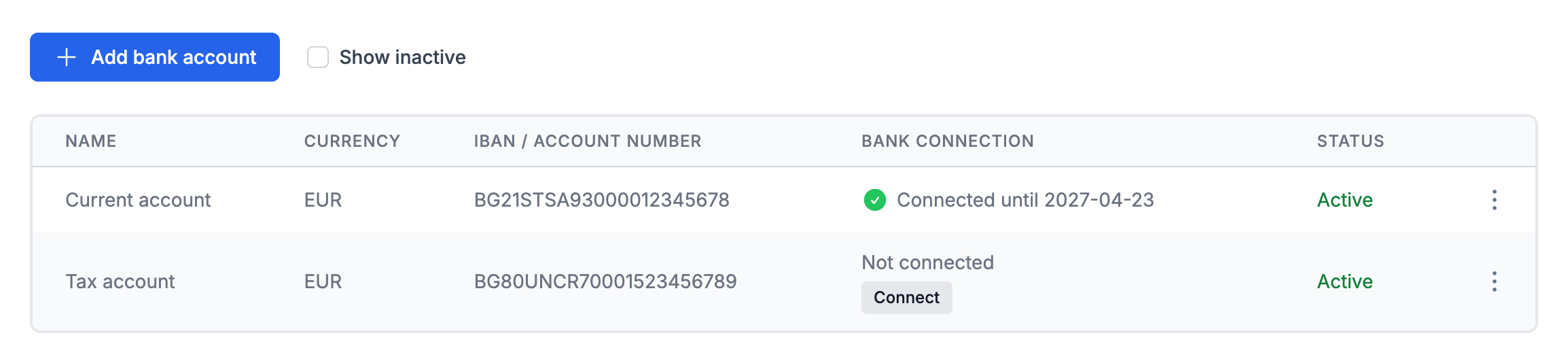
- In the Bank connection column, click Connect.
- In the Redirect to the bank dialog, click the Redirect to the bank button. For some banks, also enter your online banking username or phone number there.
- On the bank's website, sign in and confirm access to the account.
- The bank sends you back to eFirma. Once the transactions have synced, the column shows Connected until and a date.
The Bank list has the banks eFirma can connect to, for example UniCredit Bulbank, DSK Bank, UBB, Postbank and Fibank, as well as Revolut, Wise and Paysera. If your bank is missing, choose Other (not listed). You can select such an account on your invoices, but you cannot connect it.
Your consent at the bank is valid until the date in the Bank connection column. When it is about to end, click Reconnect and confirm at the bank.
Extra accounts
When you connect an account beyond the one included in your plan, the dialog before the bank shows the price, and the button becomes Pay … and go to the bank. You pay only for the time left until your subscription renews.
You can also buy accounts in advance with Buy extra accounts in Settings, Subscription tab. They stay in your subscription until you reduce their number, as described in the article on plans and subscriptions.
What you see in Payments
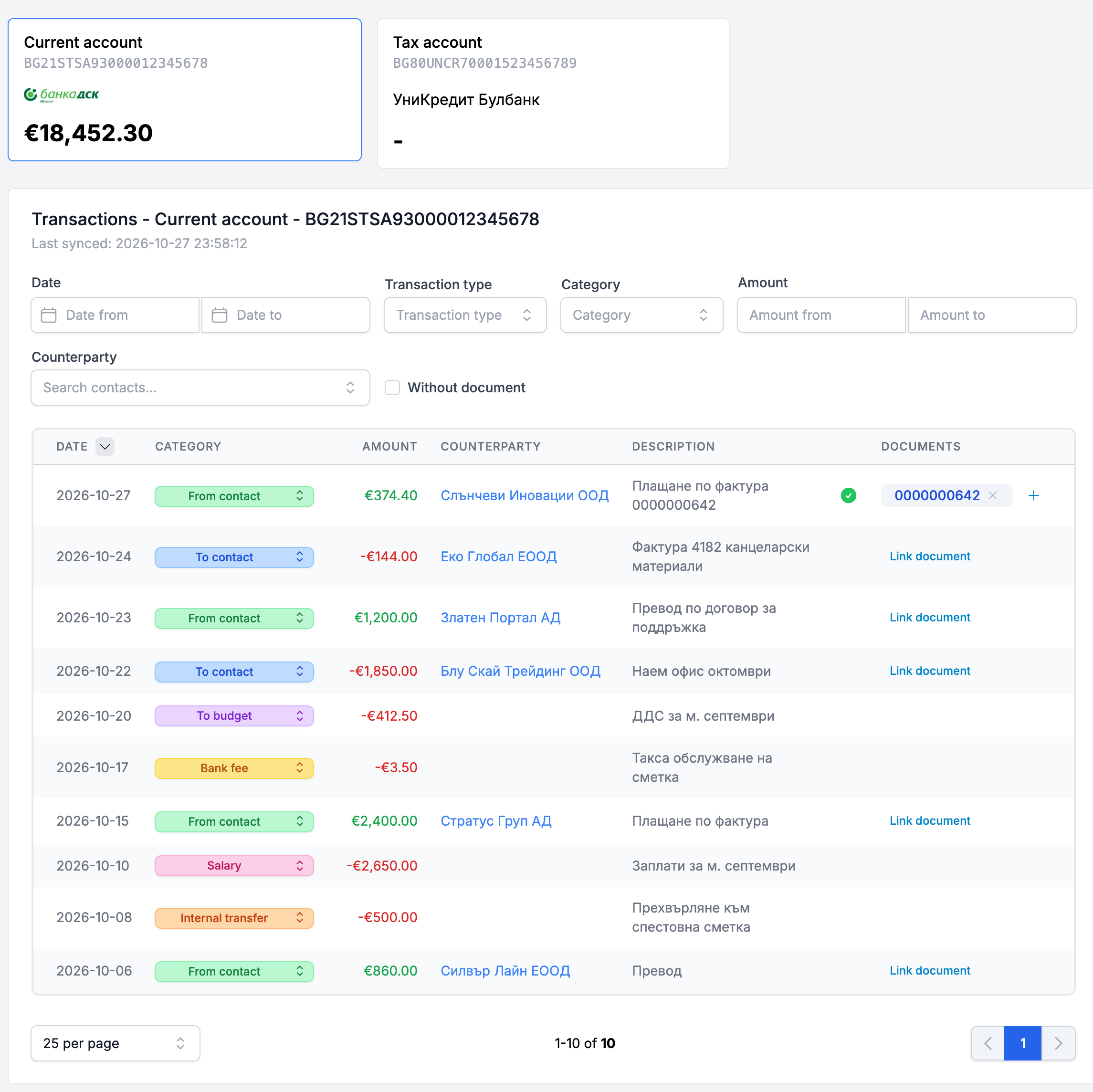
At the top of Payments are the cards of your bank accounts with their balances. Select a card to see its transactions. The Transactions table shows Date, Category, Amount, Counterparty, Description and Documents, and the Without document filter leaves only the payments that are not linked yet.
eFirma sets a category on each transaction automatically, for example To budget, Internal transfer, Bank fee or Salary. If it is wrong, choose another one from the dropdown. A category you choose does not change on the next sync.
If the counterparty is not recognized, click Link contact and choose a contact. The counterparty's IBAN is added to the contact, and eFirma then recognizes the other payments from it too.
How to link a payment to an invoice or expense
- In Payments, find the transaction and click Link document in the Documents column.
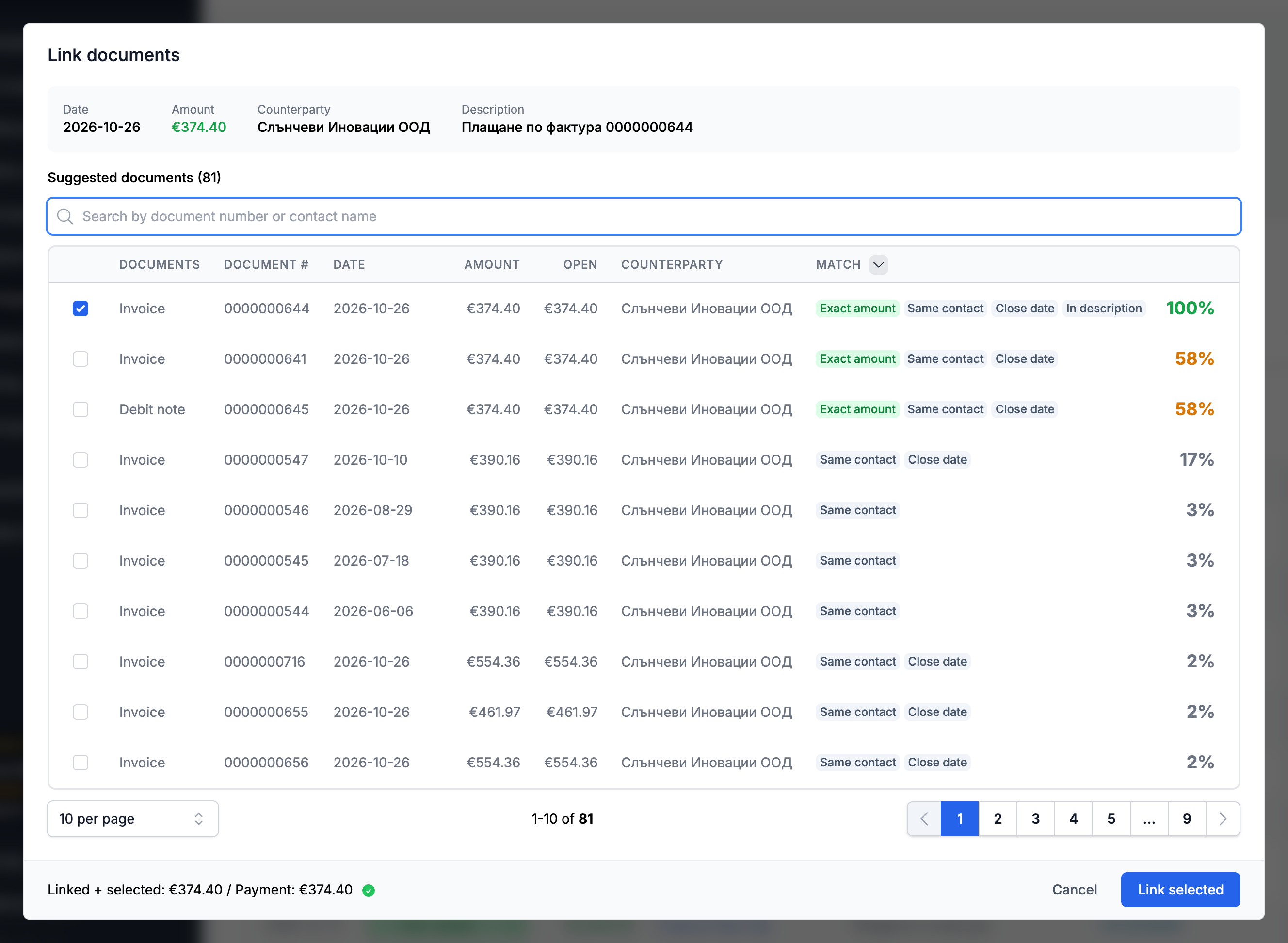
- In the Link documents dialog, look at Suggested documents. For an incoming payment, eFirma suggests invoices, debit notes and other revenues, and for an outgoing one, expenses and credit notes. Each one shows why it was suggested, for example Exact amount or Same contact.
- If the document is not among them, search for it by number or contact name.
- Select one or more documents and click Link selected.
You can link documents only to transactions in the From contact, To contact and Other categories.
After linking, eFirma recalculates the document's status. If the linked payments cover the full amount, the expense or invoice becomes Paid. If they cover only part of it, it becomes Partially paid. Void documents do not change. You also see the linked payments in the document itself, in the Linked payments section. To remove a link, click ✕ next to the document number in the transaction, and the status is recalculated.
How to disconnect from the bank
- Open Settings and the Bank accounts tab.
- In the three-dot menu next to the account, choose Disconnect from bank.
- Confirm with Disconnect.
The account stays active and can be selected on documents, but its transactions no longer sync. Transactions already synced and the documents linked to them stay. Its place in your subscription is freed up for another account. To connect it again, give new consent at the bank.
Did not find an answer? Write to us through Feedback in the app or through the contact form.
Ready to get started?
Registration is free, and your first invoice takes only a minute to issue.
Start for freeNo credit card required. You can cancel at any time.