Items
How do I add an item?
Save your goods and services as items with a name, price, unit and category, and add them to invoices without typing them again.
Items are the goods and services you sell. You enter each one once with a name, price, unit and category, and then pick it on your invoices without filling in the details again. The item list is available on every plan.
How to create an item
- Open Items from the menu.
- Click New item at the top right.
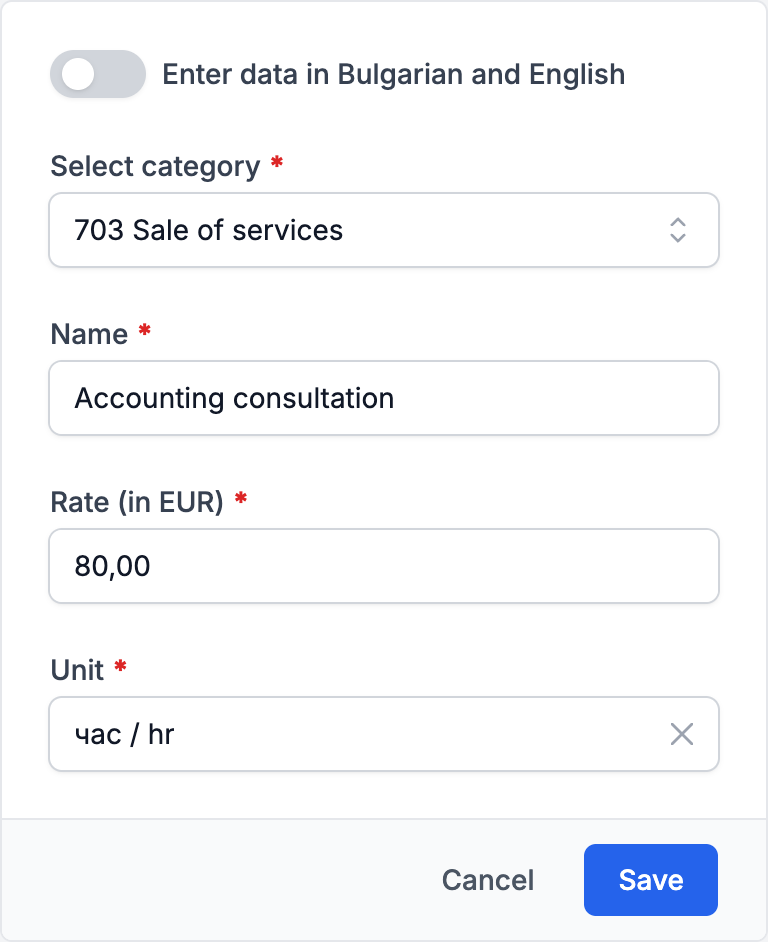
- If you also issue invoices in English, turn on Enter data in Bulgarian and English. You then enter the name in both languages.
- In Select category, choose the revenue category. If none fits, add one with New category at the end of the list.
- In Name, enter the name that should appear on the invoice.
- In Rate (in EUR), enter the price for one unit without VAT. It can be zero or negative, for example for a discount.
- In Unit, choose the unit. If a unit is missing, add it with New unit at the end of the list.
- Click Save.
The price is in the company's base currency, which is shown in the field name. An item has no VAT rate of its own: you choose the rate on each invoice.
How to add an item to an invoice
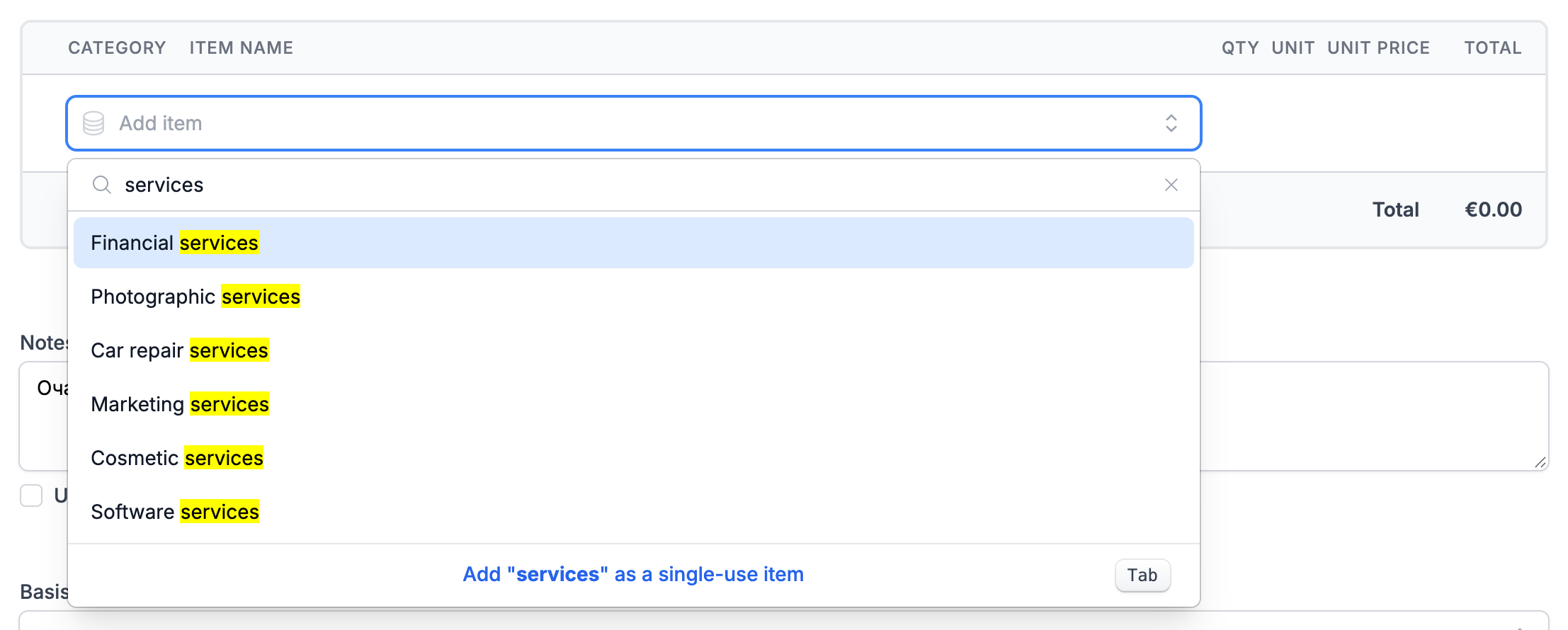
- In the invoice editor, click the Add item field below the lines.
- Type part of the name and choose the item from the list.
The new line gets the item's name, price, unit and category. An invoice in English uses the English name, or the Bulgarian name if there is no English one. You can change the name and price on the line without affecting the item. You cannot change the unit on such a line. The price is copied without currency conversion, so check it if the invoice is in a different currency.
If the item is not in the list yet, leave the field empty and click New item at the end of the list. The item is saved to your item list and added to the invoice without you leaving the invoice. More about invoices: How do I issue an invoice?
Editing and deleting
- In Items, click the item's row or choose Edit from the three-dot menu.
- Change the details and click Save.
Changes apply to new documents. Invoices you have already issued keep the name, price and unit they were created with. You cannot change the unit once the item has been used in an invoice, proforma invoice, credit note or debit note. The History button on the item's page shows the changes made to it.
To delete an item, choose Delete from the three-dot menu and confirm with Delete. Documents that already use the item do not change.
Did not find an answer? Write to us through Feedback in the app or through the contact form.
Ready to get started?
Registration is free, and your first invoice takes only a minute to issue.
Start for freeNo credit card required. You can cancel at any time.