Contacts
How do I add a contact?
Add a customer or supplier by hand or with data from the Commercial Register and VIES, along with their bank accounts and document settings.
Contacts are your company's customers and suppliers. You choose the customer when you issue an invoice or another revenue document, and their details are filled in on the document. One contact can be both a customer and a supplier.
Adding a contact
- Open Contacts from the menu and click New contact.
- Under Contact type, leave both Customer and Supplier checked or uncheck one of them. At least one type is required.
- Choose Country of registration. It defaults to your company's country.
- Fill in Company name, UIC, VAT and Email address by hand or automatically, as described below. The email address is filled in as the recipient when you send the contact a document by email.
- Optionally, fill in the Address, Bank accounts, Settings and Additional information tabs.
- Click Save.
For a contact from Bulgaria, UIC is a required field and accepts 9, 10 or 13 digits.
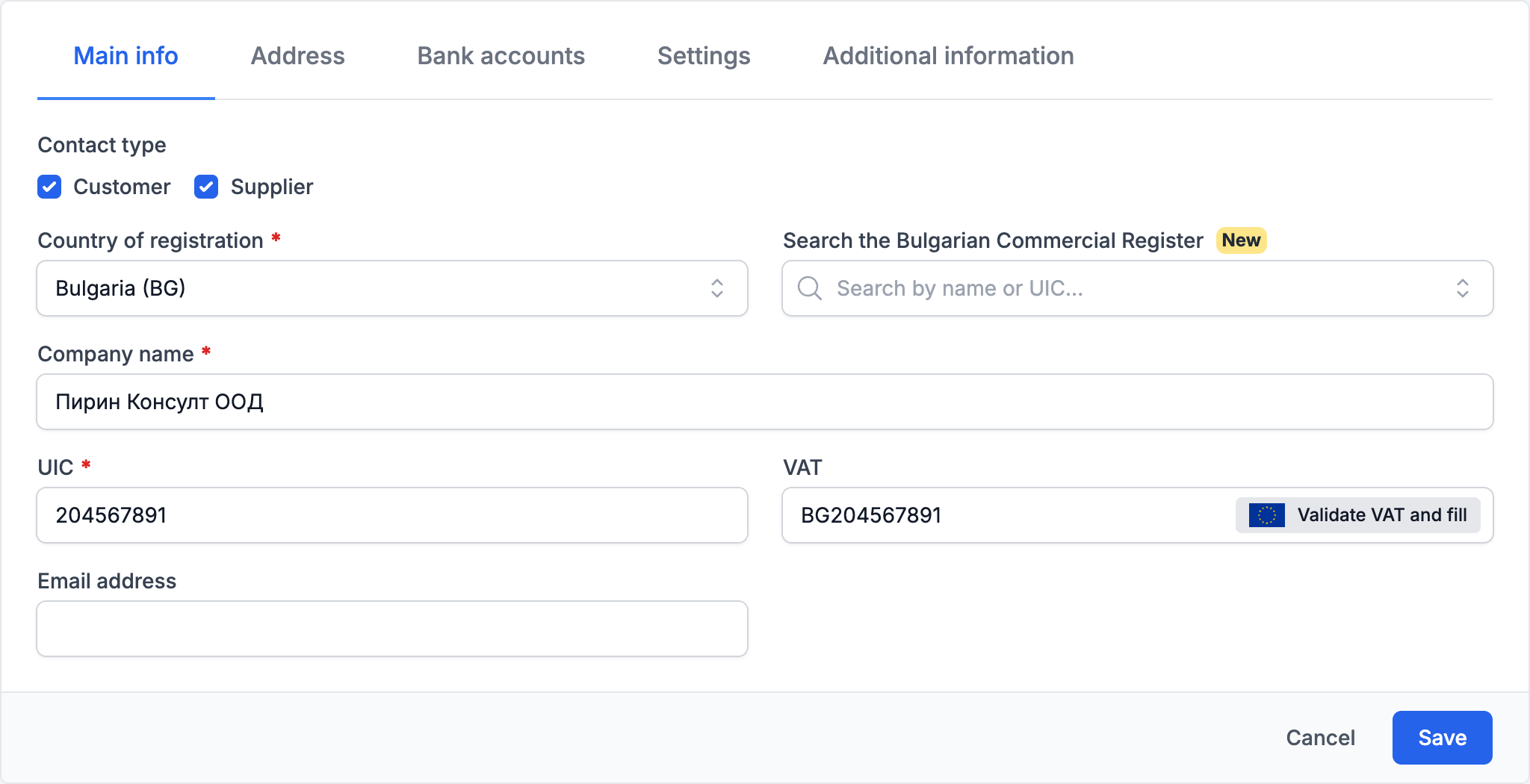
Data from the Commercial Register and VIES
When the country is Bulgaria, the form has a Search the Bulgarian Commercial Register field. Type at least three characters of the name or UIC and choose the company. eFirma fills in the name, UIC and address from the register, then checks in VIES whether the company has a VAT number and, if it does, fills in VAT. If the company has been deleted from the register, is in liquidation or is in insolvency proceedings, the form shows a warning.
For a company from another EU country, enter its number in VAT and click Validate VAT and fill. eFirma checks the number in VIES and shows whether it is valid. If the number is valid, eFirma fills in the country and, if those fields are empty, the name and address too.
Bank accounts
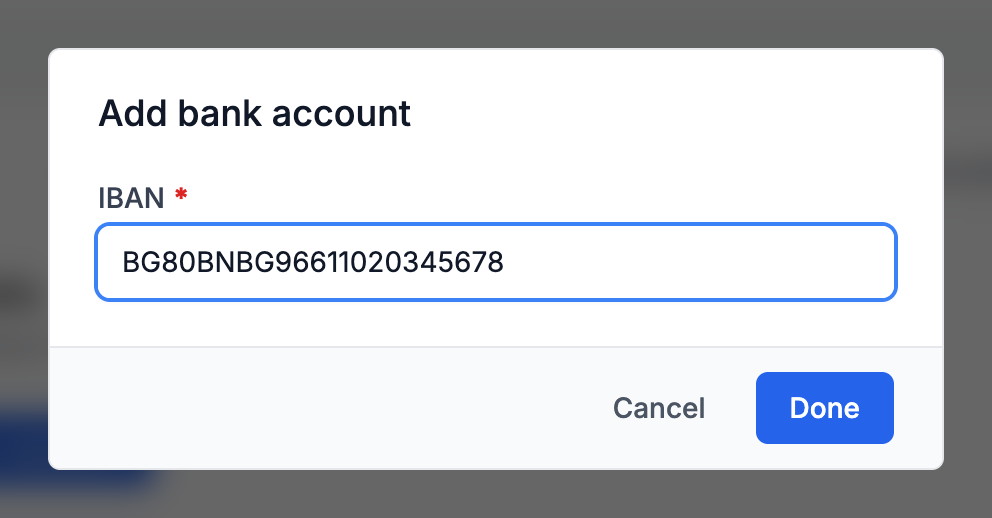
- Open the Bank accounts tab and click Add bank account.
- Enter the IBAN and click Done.
- Repeat for each of the contact's accounts. The accounts are saved when you save the contact.
If your bank account is connected to eFirma, transactions from and to the contact's IBAN are linked to the contact automatically, as long as the same IBAN is not also saved on another contact. Connecting a bank account is included in the Business and Firm plans, and the article How do I connect my bank account? explains how.
Document settings
On the Settings tab, set Document currency, Payment method, Document language and Document notes. When you choose the contact in an invoice, these values are filled in automatically, and you can change them in the invoice itself.
Adding a contact from an invoice
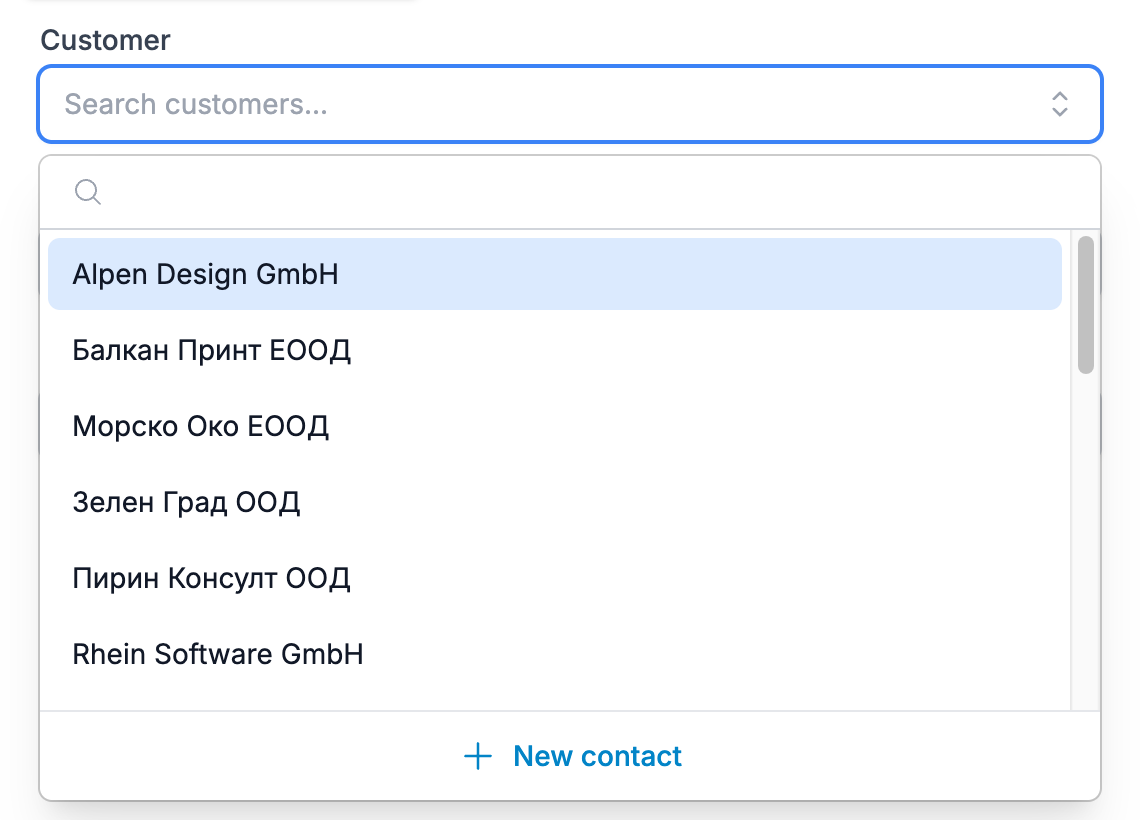
You do not need to leave the invoice to add a customer. Open the list in the Customer field and click New contact. The same form opens with the Customer type checked. After you click Save, the contact is selected in the invoice. To change the selected customer's details, click Edit contact below the field.
Editing a contact
- In Contacts, click the contact's row or choose Edit from the three-dot menu.
- Make your changes and click Save.
The History button shows the changes made to the contact. If you already have a contact with the same UIC or VAT number, eFirma shows a View existing contact button. If you need separate contacts, for example for the departments of one organization, click Save anyway.
Exporting the list
In Contacts, click Export and choose CSV or XLSX. The file contains the contacts that match the selected filters. Export works on every plan.
Did not find an answer? Write to us through Feedback in the app or through the contact form.
Ready to get started?
Registration is free, and your first invoice takes only a minute to issue.
Start for freeNo credit card required. You can cancel at any time.